
I still remember the sinking feeling when I accidentally deleted an entire folder of project files last month. That moment of panic is something most of us know too well, especially when those files are irreplaceable family photos, critical work documents, or years of creative work. But here’s what I’ve learned: with the right recovery software, you often have a surprisingly good chance of getting everything back.
If you’ve come across RecoveryFox AI and are wondering whether it’s worth your time, this review is for you. I’ll walk you through what makes this tool stand out from the crowd or whether it’s just another gimmick designed to tempt you into a paid upgrade with limited trial features. I’ve spent considerable time testing its capabilities, ease of use, performance, security, and limitations to determine if RecoveryFox AI truly deserves the title of the best data recovery solution in 2026.

What Exactly is RecoveryFox AI?
RecoveryFox AI is a Windows-based recovery tool developed by WonderFox Soft. What immediately caught my attention is that both the unregistered and registered versions use the identical recovery engine. You don’t need any technical expertise to scan drives and preview lost files, which was a huge relief for me.
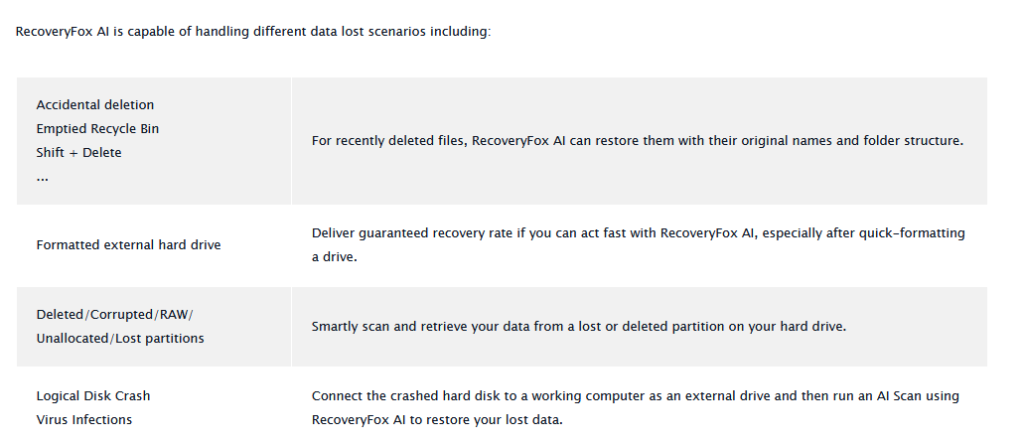
In terms of real-world application, RecoveryFox AI tackles the exact problems most of us face when we frantically search for a top data recovery tool:
- Accidental file deletion, including files removed with Shift+Delete (which bypasses the Recycle Bin entirely)
- Recycle Bin emptying, those files seem permanently gone, but often they’re still recoverable
- Drive formatting or corruption, whether from an accidental click or during troubleshooting
- Virus attacks or system crashes, including ransomware incidents or situations where your PC won’t even boot
For a new tool, this covers a remarkably wide range of functions, encompassing virtually every scenario that does not involve physical hardware damage.
Core Features & Functionality: What Makes RecoveryFox AI Stand Out?
Let me break down what I discovered while exploring RecoveryFox AI’s core capabilities:
- Extensive file support: It can recover over 500 file types, including photos, videos, documents, audio files, emails, and compressed archives
- Broad device compatibility: Whether you’re dealing with internal HDDs, external drives, SSDs, USB flash drives, SD cards, or cameras, it handles them all
- Free file preview: Before committing to recovery, you can preview recoverable files, including photo thumbnails and readable documents, so you know exactly what you’re getting
- Smart filtering: You can adjust filter tags and enter keywords in the search field to pinpoint exactly what you need
- Simple three-step process: Choose a location, scan, and recover, it’s that straightforward
Step-by-Step: Recover Permanently Deleted Files with RecoveryFox AI
Even if you’ve never touched data recovery software before, RecoveryFox AI makes the process remarkably painless. Here’s exactly how I used it to recover deleted files in Windows 11:
Step 1: Download and install.
I grabbed the RecoveryFox AI installer directly from the official website and installed it like any standard Windows application.
Step 2: Launch and select a location.
After launching it according to the steps, I checked whether it detected the drive where my files were lost and selected that location to prepare for the scan.
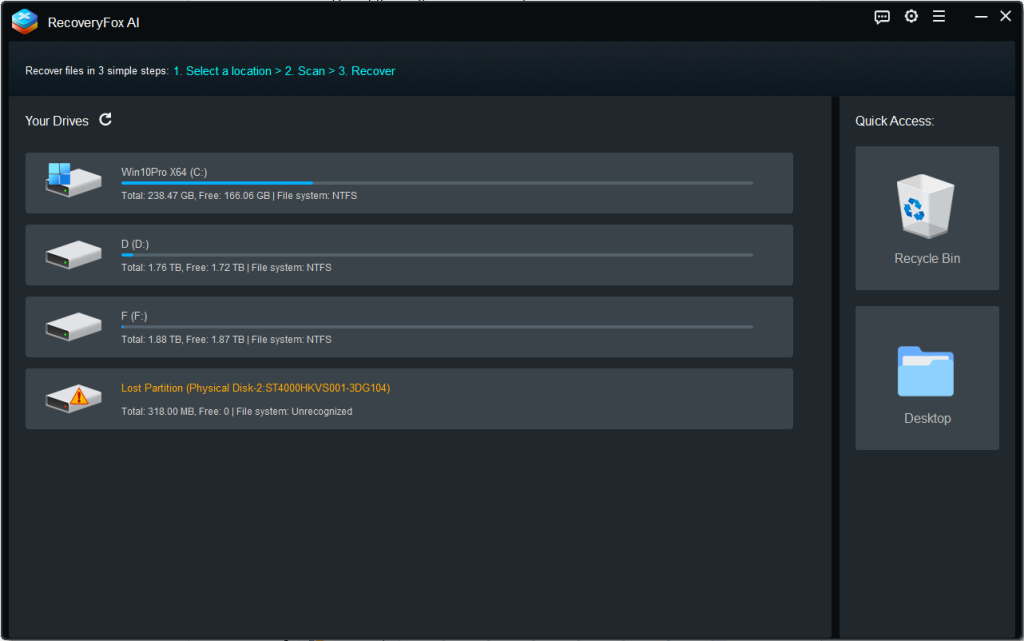
Step 3: Scan the drive.
After selecting the drives to target, I started the scan. For smaller drives, it took just minutes; larger or heavily fragmented drives required more patience. The results appeared in real-time as the scan progressed.

Step 4: Preview and recover.
I filtered by file type, searched by name, previewed my files, and then restored the ones I needed. A critical tip: always save recovered files to a different drive to avoid overwriting the very data you’re trying to salvage.
RecoveryFox AI Review: Performance, Security, and Ease of Use
Features sound great on paper, but they only matter if the software delivers in practice. Here’s my honest assessment of RecoveryFox AI’s safety, recovery performance, and ease of use:
Security:
RecoveryFox AI scans drive in read-only mode, meaning it never modifies or overwrites your source drive during the scanning process. This significantly reduces the risk of permanent data loss.
Performance:
Quick scans typically wrapped up in just a few minutes. The more thorough AI-powered scans took longer, especially on large or formatted drives, but that’s true of any AI-powered data recovery software.
Ease of Use:
After downloading it to my Windows PC, I could recover files from different storage devices in just three simple steps. The interface clearly guides you through each stage, and comprehensive product guides are readily available on the official website. Overall, I found it to be one of the most user-friendly data recovery tools available in 2026.
Final Verdict
After extensive testing, I can confidently say that RecoveryFox AI delivers on its promises. It offers unlimited file previews and read-only scanning—both essential features for safe, effective recovery. Whether you’re dealing with accidentally deleted files, USB file recovery scenarios, or need to restore permanently deleted files from a formatted drive, this tool handles the job with impressive reliability.
If you’re curious about its capabilities, I highly recommend trying the unregistered version of RecoveryFox AI before making any purchase decisions. The unregistered version gives you a genuine feel for the recovery engine and lets you preview exactly what can be restored. However, if you need to recover a larger volume of files, you’ll want to upgrade to the registered version for full, unrestricted recovery. For anyone searching for a dependable, AI-powered data recovery solution in 2026, RecoveryFox AI is absolutely worth your attention